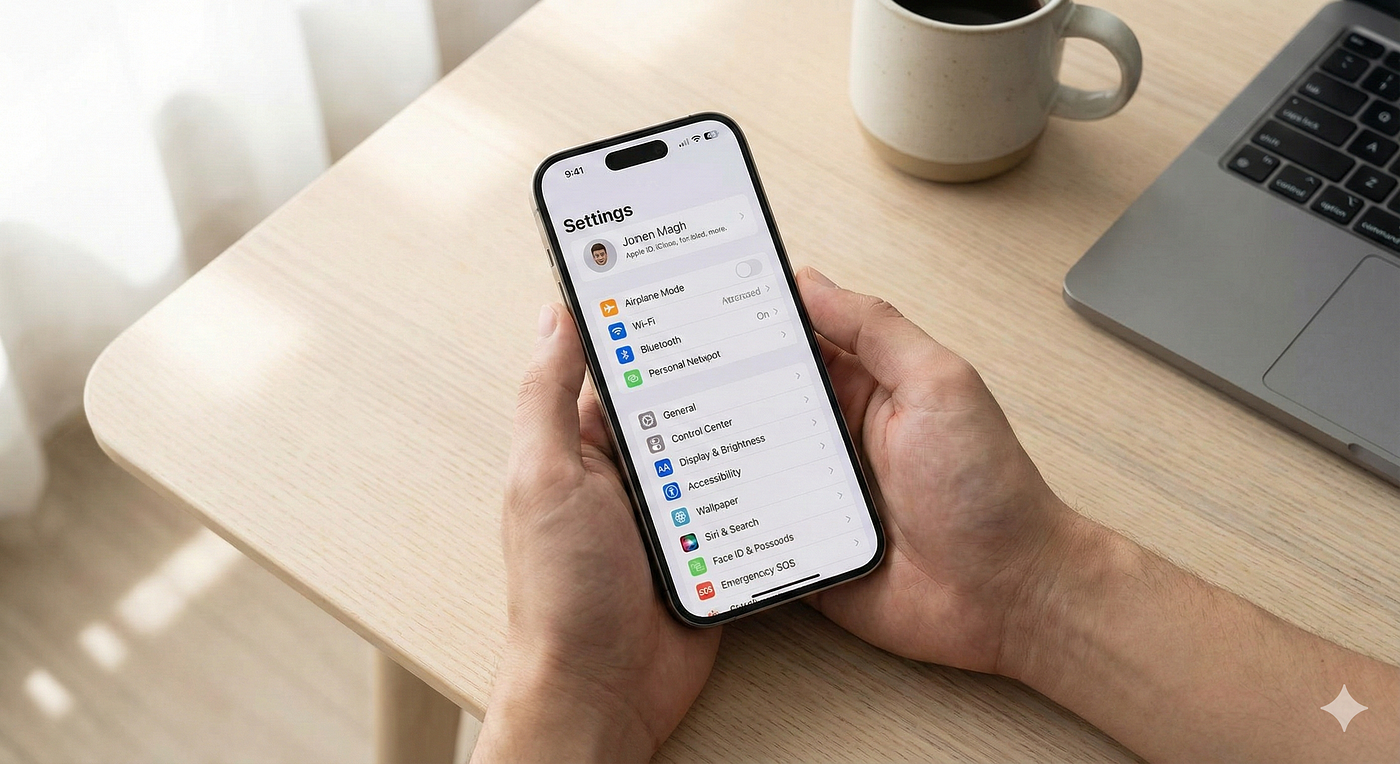
iOS privacy in 2026 is less about one big “private mode” switch and more about getting dozens of small decisions right without turning your phone into a frustrating brick. Most people either leave defaults on because they fear breaking features, or they deny everything and then wonder why maps, delivery tracking, photo uploads, and even payments behave oddly. The practical goal is a stable middle: apps get what they truly need at the moment you use them, but they don’t keep collecting in the background just because you once tapped “Allow.” iOS already gives you the tools to do this well: per-app permission scopes, “while using” location, limited photo library sharing, tracking controls, and visibility for sensitive access like camera and microphone. The 2026 lifehack is to treat privacy like maintenance. You make one intentional pass through the few settings that matter most, you tighten permissions using defaults that don’t break normal use, and you add a simple monthly check so things don’t drift back over time. Done correctly, your apps still feel smooth, notifications still arrive, and essential features like navigation and payments keep working, but your background data collection drops dramatically.
Use safe permission defaults: “Ask Next Time,” “While Using,” and “Selected Photos” as your baseline
The most effective privacy change is not banning apps; it’s changing the default decision you make when iOS asks for access. For location, “While Using the App” is the best baseline. It supports maps, ride hailing, delivery apps, and nearby searches without letting the app track you when you’re not actively using it. “Always” location should be rare and justified—usually reserved for navigation that needs background guidance or a trusted safety app. If you see an app with “Always” and you can’t explain why it needs it, downgrade it immediately and see what breaks. For photos, avoid full library access as a default. iOS allows sharing “Selected Photos,” which is one of the best privacy features because it prevents an app from scanning your entire library when you only wanted to upload two images. For contacts, calendars, Bluetooth, and local network access, use the same rule: only grant it if you can name a feature you actively use that depends on it. If you’re unsure, choose “Don’t Allow” or “Ask Next Time,” then grant access later in context if the app genuinely needs it. This approach keeps apps stable because you’re not randomly disabling things mid-workflow—you’re building a permission posture where access is earned at the moment it’s required. Over time, most apps will run normally with fewer permissions than you expect, and the ones that truly need access will make it obvious by requesting it when you try to use a feature.
Cut tracking without breaking core features: App Tracking Transparency, ads settings, and privacy-first browsing
Tracking is different from permissions because an app can still function perfectly while you reduce tracking, since tracking mostly powers advertising and profiling rather than the app’s core utility. The key iOS lifehack is to be strict with tracking prompts. When iOS asks whether to allow tracking, default to “Ask App Not to Track” for almost everything. This doesn’t stop all data collection, but it blocks the easiest cross-app identifier sharing that fuels ad profiles. You can also review which apps have been granted tracking permission and revoke it where it’s not essential. Another quiet win is limiting personalized ads and reducing analytics sharing options where iOS offers them. These settings don’t usually affect notifications, payments, or app stability; they mainly affect how your behavior is packaged and sold. Browsing is another high-impact zone because your browser sees so much of your activity. Use privacy features like blocking cross-site tracking and being cautious with logged-in browser sessions, especially for services that don’t need to stay signed in. The best mindset is: let apps do their job, but don’t give them extra identity signals. You’ll still get your ride, your music, and your social feed, but you’ll reduce how easily third parties connect those actions into one profile.
Keep camera, mic, and background access under control: indicators, background refresh, and push notifications
Sensitive access is where privacy feels personal. iOS provides visible indicators when the camera or microphone is active, and the lifehack is to treat those indicators as a trust dashboard. If you see a mic indicator when you’re not using a voice feature, that’s a signal to check which app was active and remove mic access from anything that doesn’t absolutely need it. Do the same for camera access. Most apps don’t need camera permission unless you actively take photos inside the app. Removing camera permission rarely breaks the app; it just forces the app to request it again when you actually try to use the camera. Background behavior matters too. “Background App Refresh” can be useful for some apps, but it also allows ongoing activity that can generate data. A stable privacy-friendly approach is to disable background refresh for apps that don’t need it—especially shopping, social, and casual apps—and keep it for the few that benefit from it, like communication apps that you rely on for timely updates. Push notifications are similar: you can keep notifications for important apps while restricting others, and you can hide sensitive content on the lock screen to reduce accidental exposure. The idea isn’t to cut all background behavior; it’s to keep background privileges for apps that actually improve your life and remove them from apps that merely want more engagement.
One-pass privacy tune-up: a quick routine that keeps iOS useful and your data footprint smaller
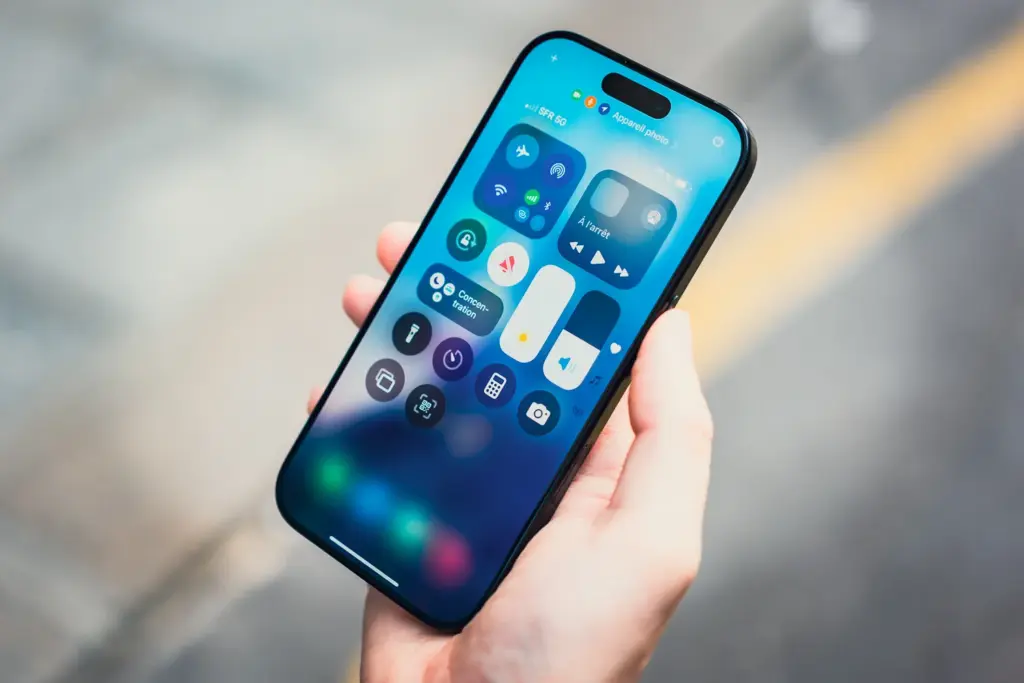
The easiest way to make privacy changes stick is a short routine you can repeat. Start by scanning location permissions and converting most apps to “While Using.” Then review photo access and switch most apps to “Selected Photos” or “None.” Next, review microphone and camera permissions and remove access from apps where it’s not clearly necessary. After that, check tracking permissions and remove any that don’t feel essential. Finally, do a quick “app hygiene” pass: uninstall apps you haven’t used in months, because unused apps are pure data risk with no benefit. This routine keeps your phone stable because you aren’t randomly toggling dozens of settings daily; you’re doing one intentional pass and letting your daily usage reveal which permissions you truly need. If a key app breaks, you grant access in context and move on. Tie this to a monthly reminder or to the day you install iOS updates, because updates and new app installs can gradually expand your permission surface. When you manage privacy like maintenance—small, consistent adjustments—you get the best outcome: apps remain smooth and functional, while your background data collection and tracking exposure drop to a level you actually control.

Leave a Reply